Get Your Device Back Online

Simple step-by-step guide to reconnect your Divvy device

1
Identify Device
2
Verify Remote
3
Follow Steps
4
Complete

Step 1: Identify Your Device

Select the device that matches what you see at your location
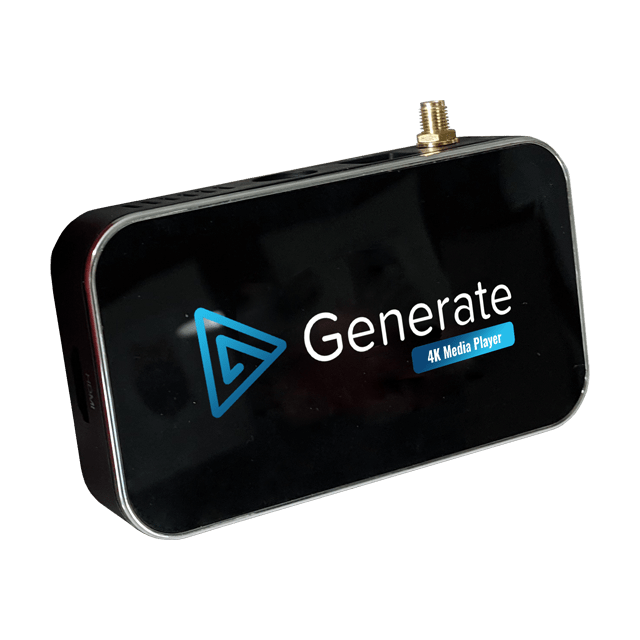
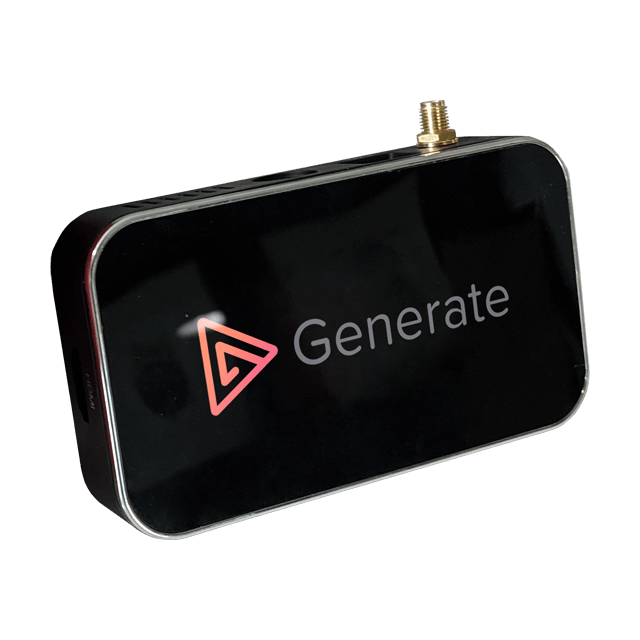
X4 Generate
Newest model • Sleek black design • Blue Generate Logo
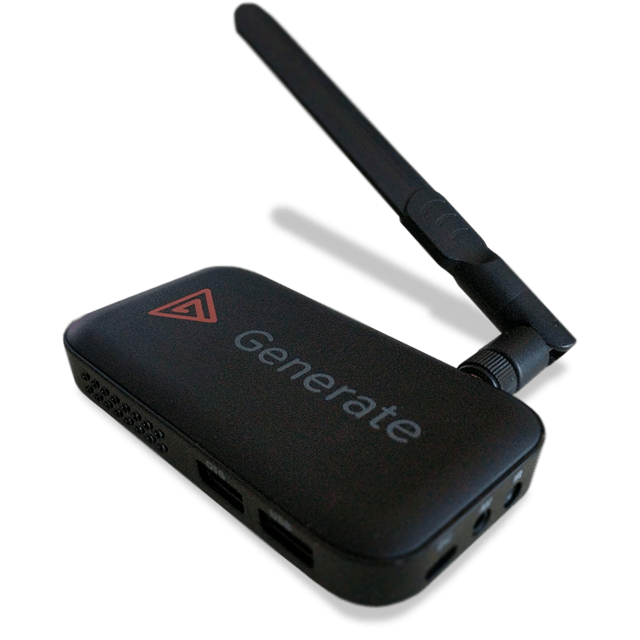
X3 Generate
Black rectangular design • Orange Generate Logo
UM3
Black rectangular design with rounded corners • Orange Generate Logo
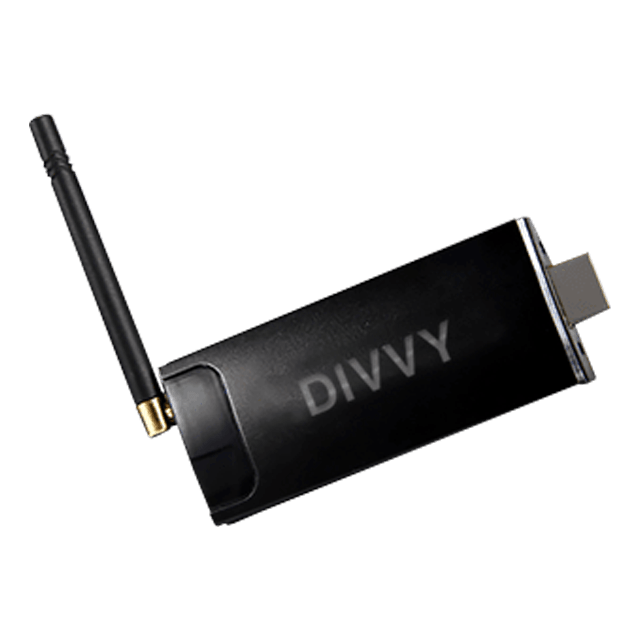
Legacy Device
Compact design • Visible antenna ports

Not sure which device you have?

Check the label on the bottom or back of your device, or contact support for help.

Step 2: Choose Your Control Method

Select how you’ll navigate your device

Standard Remote

This is the remote that comes with your device.

This doesn’t match my remote

Don’t have your remote?

🖱️

Use a USB Mouse Instead

Plug a USB mouse directly into your device to navigate the menus

Step 3: Follow These Steps

Follow each step carefully to reconnect your device

Device Successfully Reconnected!

Your device should now be back online and displaying your menu content.

What happens next?

  • Your device will sync with our servers
  • Content should appear within 2-5 minutes
  • If you don’t see content after 10 minutes, please contact support
Return to Home

Still having issues?

Our support team is here to help

⚠️ The Device Status page is only accessible by an Account User.

×

Select Your Remote Type

Choose the remote that matches yours